Building and pushing Docker images manually can help you understand the basics, but it’s not a good way to do things once projects start to grow. When teams make changes more often, doing the same things by hand over and over again takes a long time and isn't always accurate. and is easy to mess up. A lot of teams use a CI/CD pipeline to automate building and deploying images for this reason.
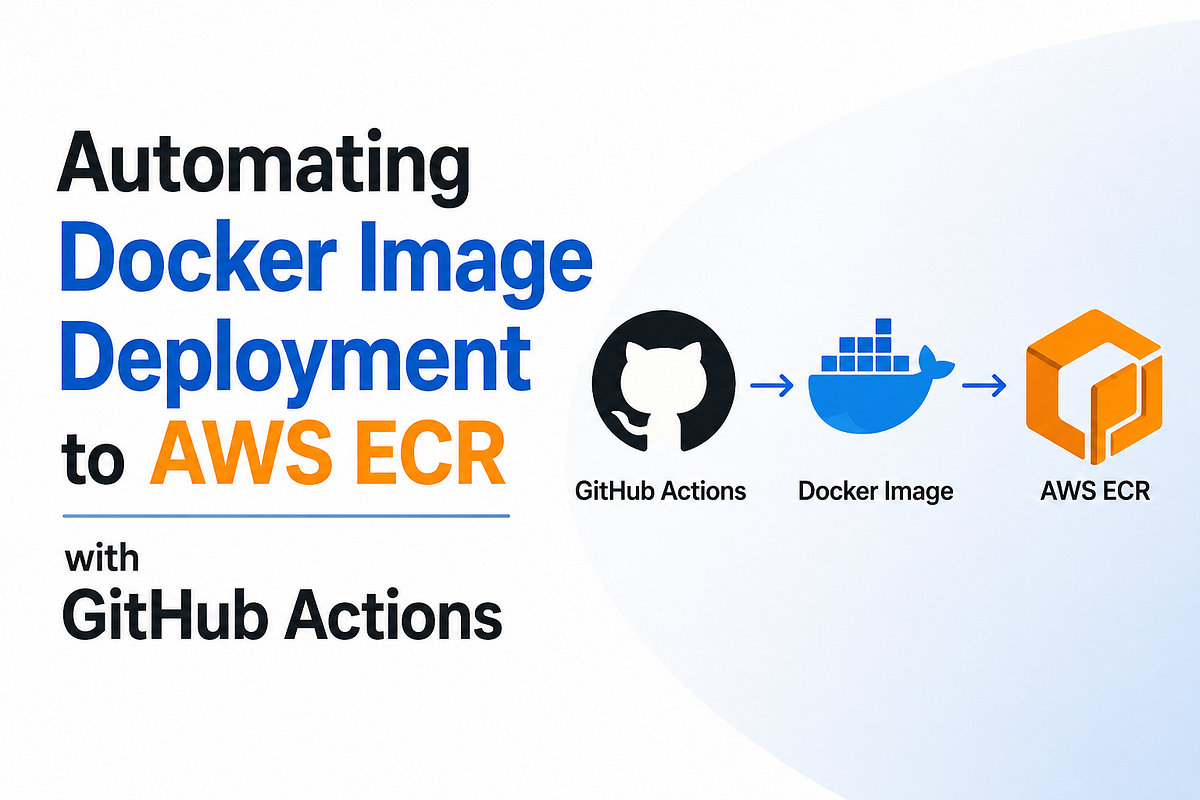
GitHub Actions makes the process much easier by connecting your source code directly to AWS ECR. Instead of building and pushing Docker images manually every time, you can create a workflow that does it automatically whenever code is updated. In this guide, we will look at how to automate Docker image deployment to AWS ECR with GitHub Actions and make the path from code change to deployment-ready image much simpler.
Why Should You Automate Docker Deployment With a CI/CD Pipeline?
Relying on developers to manually build and push containers from their local machines creates a massive bottleneck and introduces severe security risks. When you automate Docker deployments using a robust CI/CD pipeline, every single code commit is automatically tested, packaged, and delivered to your registry without manual intervention. GitHub Actions is particularly powerful because it lives right alongside your source code, meaning you do not have to integrate or pay for a completely separate deployment tool.
Key Benefits of Automation
- Better consistency
- Faster Delivery
- Improved Traceability
- Better support for regular releases
What Prerequisites Do You Need for AWS ECR and GitHub Actions?
Before you automate Docker deployment to AWS ECR, a few things need to be ready. You need both your AWS setup and your GitHub repository in place so the workflow can build and push images without issues. Getting these basics ready first makes the automation process much easier to follow.
At a minimum, you should have an AWS account, an existing ECR repository, and a GitHub repository that already contains your application code. Your project should also include a Dockerfile, since GitHub Actions will use it to build the Docker image. On top of that, AWS permissions must be configured correctly so the workflow can be authenticated and push the image to ECR.
How Do You Securely Store AWS Credentials in GitHub?
Connecting your GitHub repository to your AWS environment requires authorization, but hardcoding sensitive credentials into your codebase is a catastrophic security mistake. Instead, you must utilize GitHub Repository Secrets, which encrypt your sensitive data and keep it entirely hidden from anyone browsing the public or private code. You can find this secure storage area by navigating to your repository settings, selecting "Secrets and Variables,” and clicking on "Actions."
Here you will safely store your AWS_ACCESS_KEY_ID and AWS_SECRET_ACCESS_KEY as securely encrypted environment variables. When your GitHub Actions workflow eventually runs, it will pull these secrets dynamically, allowing it to log into your AWS cloud ecosystem without ever exposing your private keys in the build logs.
How Do You Write the GitHub Actions Workflow File?
The GitHub Actions workflow file is the part that tells your automation what to do and when to do it. It is written in YAML and stored inside the **.github/workflows/**** **folder in your repository. This file defines the event that starts the workflows, such as a push to the main branch, and the steps GitHub Actions should run after that.
In this case, the workflow usually starts by checking out your code and preparing access to AWS. After that, it logs in to AWS ECR, builds the Docker image, applies the right tag, and pushes the image to your ECR repository. Once this file is in place, GitHub Actions can handle the same process automatically every time new code is pushed.
Long-Lived IAM Keys vs. OIDC: Which Authentication Method Is Better?
When setting up GitHub Actions for AWS ECR, you need a way for GitHub to authenticate with AWS. One option is to use long-lived IAM access keys, which are stored as GitHub secrets. This method is easier for beginners to understand, but it also creates more security risk because the keys stay valid until you rotate or remove them. GitHub’s OIDC guidance specifically positions OIDC as a way to avoid storing long-lived cloud credentials in GitHub secrets.
A more modern option is OIDC. With OIDC, GitHub Actions requests a short-lived identity token during the workflow run, and AWS exchanges that token for temporary credentials tied to an IAM role. That means you do not need to keep permanent AWS secrets in GitHub, and the credentials expire after the workflow instead of staying active indefinitely. AWS IAM documents this model as exchanging an OIDC token for temporary AWS security credentials mapped to an IAM role.
OIDC takes a little more setup because you need to create an IAM OIDC provider, configure a trust relationship, and let the workflow request an ID token. The official AWS credentials action for GitHub Actions recommends OIDC as the quick start and preferred approach, and GitHub’s AWS OIDC guide explains that the workflow needs it id-token: write so GitHub can request the token.
Simple takeaway
- **IAM access keys **are easier for quick learning
- **OIDC **is safer for real CI/CD pipelines
- OIDC avoids storing long-lived AWS secrets in GitHub
- **OIDC **is usually the better choice for production workflows.
How Do You Verify Your Automated Docker Deployment?
After the workflow runs, the next step is to make sure the Docker image was pushed to AWS ECR successfully. The easiest place to start is the **Actions **tab in your GitHub repository, where you can see whether the workflow passed or failed. This helps you confirm that the build, logging, and push steps all completed as expected.
Once the workflow shows success, you can check AWS ECR in the AWS console. Open your repository and confirm that the new image appears there with the expected tag and a recent timestamp. This gives you quick proof that the automation is working and that the image is ready for deployment or testing.
What Are the Common CI/CD Pipeline Mistakes to Avoid?
- Using incorrect AWS credentials
- Forgetting to store secrets properly in GitHub
- Tagging the image with the wrong ECR repository URI
- Missing IAM permissions for AWS ECR access
- Using the wrong AWS Region
- Not checking workflow logs when a run fails
Quick Tips for a Better Pipeline
- Use Git SHAs for image tags
- Enable caching to speed up builds
- Never print secrets or token in logs
- Review workflow logs when something fails
- Clean up old images to avoid extra storage costs
Final Thoughts
GitHub Actions makes it easier to automate Docker deployments to AWS ECR by removing manual steps and creating a consistent, repeatable workflow. It helps teams move faster with fewer errors and also provides a good starting point for building more advanced CI/CD setups like multi-environment deployments and integrations with services such as ECS or EKS.
AWS ECR for Beginners: How to Store and Manage Docker Images in AWS
Many beginners learn how to build Docker images locally, but they are not always sure where those images should live…
 Enlear